How to submit your assignments
To submit your lab, follow the instructions for a Mac machine and use cmsc10500lab when running the hwsubmit command. Always submit all of your lab work at the end of the lab session. For full credit, you should have completed part 1 and made at least a good start on part 2 of the lab.
To submit a homework assignment, follow the instructions matching the machine type you are using and use cmsc10500 when running the hwsubmit command.
Mac
Follow these submission instructions from the Mac machines in the MacLab (located where we hold the lab) or from your home Mac machine.
- Place all your files to be submitted in one folder. In this example we have a folder called lab1 located on the Desktop.
- Open a Terminal application

-
Type cd followed by a space and then drag your folder on top of the terminal window


-
Hit Enter and then type in cd .. to go up one level, outside of your submission directory.

-
We will now copy your folder to your CS account using secure copy (scp"):
scp -r lab1 gabri@ursa.cs.uchicago.edu:~/

-
We will now open a remote terminal to your CS account since we will need to run hwsubmit from your CS account. Type ssh gabri@ursa.cs.uchicago.edu, replacing with your own CS account username:

-
Run the hwsubmit command. For the lab use the argument cmsc10500lab and for homeworks use cmsc10500.
hwsubmit cmsc10500lab lab1

Linux
- Place all your files to be submitted in one folder. In this example we have a folder called hw0 located on the Desktop.
- Open a Terminal window.

- Type cd followed by a space and then drag your folder on top of the terminal window

-
Hit Enter and then type in cd .. to go up one level, outside of your submission directory.

-
We will now copy your folder to your CS account using secure copy (scp"):
scp -r hw0 gabri@ursa.cs.uchicago.edu:~/

-
We will now open a remote terminal to your CS account since we will need to run hwsubmit from your CS account. Type ssh gabri@ursa.cs.uchicago.edu, replacing with your own CS account username:
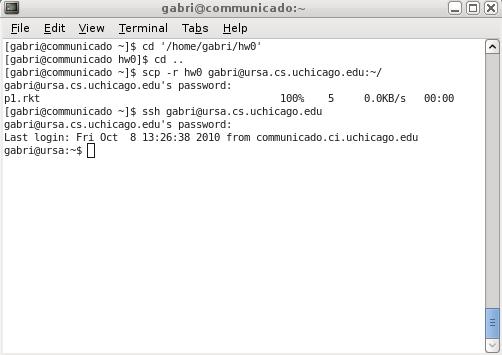
-
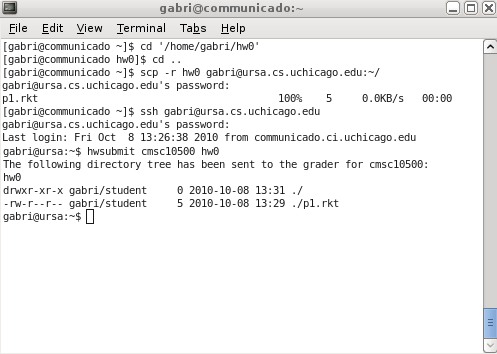
Run the hwsubmit command.
hwsubmit cmsc10500 hw0
Windows
- Place all your submission files in the same directory, with a name relevant to your assignment. (For this example we will use the name hw0).
- Download and install WinSCP from http://winscp.net We will use it to copy folders from your Windows machine to your CS account.
- Run the WinSCP application. Type in ursa.cs.uchicago.edu for the hostname, the username and password for your CS account

- After you log in, on your left side you can view and navigate the directory structure from your Windows machine and on the right side you can view and navigate the directory structure from your CS account on Linux machine ursa.cs.uchicago.edu.

- In the left panel, find your submission directory. In the right panel, remain in your home directory (e.g. /home/gabri). Drag you submission directory from the left panel to the right panel. (You can also use F5 or the Copy button on the lower bar copy to get the same result). Now you have successfully copied your work to your CS account.
- Download, install and run Putty from http://www.putty.org/. Using putty we will open a terminal remotely to your CS account.
- Type in ursa.cs.uchicago.edu for the hostname, and log in using your CS account username and password:
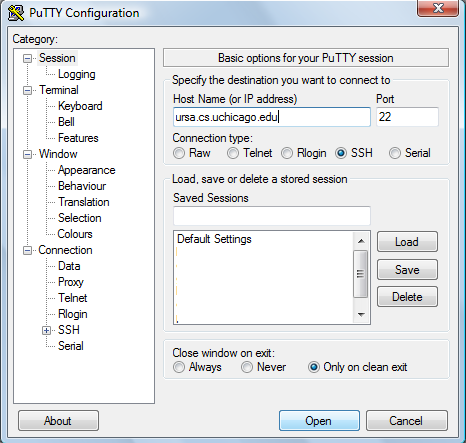
- Type in your CS account username and password.

- Type ls hw0 at the terminal, placing hw0 with the actual name of your submission directory. This command lists the contents of the hw0 directory in your CS account.

- Finally, issue the hwsubmitcommand, again replacing hw0 with your actual directory name:
hwsubmit cmsc10500 hw0
